
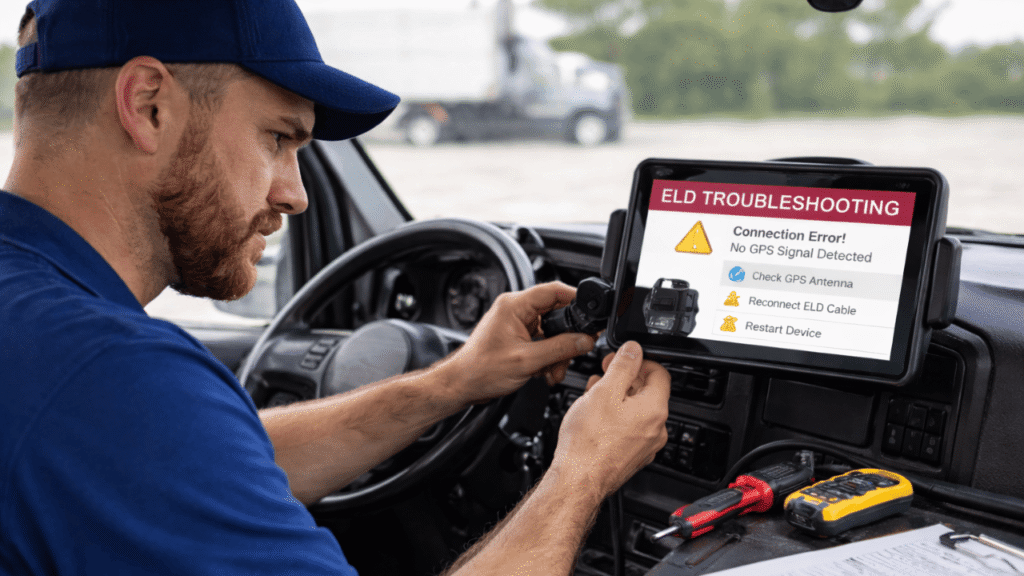
ELDs are great… until they aren’t. One minute everything’s fine, and the next you’re staring at a spinning sync wheel, a GPS warning, or a device that “can’t connect.” If you’ve ever had to do ELD troubleshooting on the side of the road (or 10 minutes before an inspection), you know the stress is real.
The good news: most issues fall into a few common buckets, and you can fix many of them with a calm, repeatable process. This guide covers ELD troubleshooting steps drivers and fleets can actually use, without turning it into a tech support marathon.
Table of Contents
Device Connection Issues
Connection problems usually come down to one of three things: power, cable/plug, or vehicle interface.
Try this order (it’s fast and it works):
- Check the power first. If the tablet/phone is low, charge it. If the ELD unit is hardwired, confirm the truck is powered and the unit has indicator lights.
- Inspect the connection. Loose OBD/ECM plugs happen more than people admit—especially after shop work.
- Restart both sides. Close the ELD app completely, reboot the phone/tablet, and cycle truck power if safe to do so.
If the device is malfunctioning and can’t reliably record or display hours, FMCSA guidance says drivers must notify the motor carrier within 24 hours, and carriers generally have 8 days to repair/replace/service the ELD (with paper logs used if accurate recording/display is impacted).
That’s a key compliance detail that should be part of your ELD troubleshooting playbook.
GPS Problems
GPS errors are common in tunnels, dense cities, remote areas, or when a device is buried under the dash with no clear sky view.
Quick fixes that usually solve it:
- Move the tablet/phone where it can “see” the sky (near the windshield).
- Confirm location services are enabled for the ELD app.
- Wait a couple of minutes—GPS often corrects itself once you’re out of a dead zone.
Also, some systems flag “positioning compliance” issues if positioning data is missing too long. FMCSA’s ELD materials note that positioning issues can trigger a positioning compliance malfunction when the device can’t obtain a position for a cumulative period (commonly referenced as 60 minutes within 24 hours).
Bottom line: if GPS problems keep repeating on the same unit, treat it as more than a one-off and escalate your ELD troubleshooting to hardware placement or installation checks.
Related Article: Using GPS and ELD Together for Better Compliance
Login Errors
Login issues are annoying because they feel “simple,” but they can create real log problems if a truck moves before the driver is properly signed in.
Common causes:
- Wrong username/profile selected (especially in shared trucks)
- Password resets not synced across devices
- Driver assigned to the wrong vehicle/unit in the back office
Fast best practice: make “log in before rolling” a hard rule. It prevents unassigned driving time and avoids messy cleanup later. If login errors occur frequently, your ELD troubleshooting shouldn’t just be resetting passwords—it should also include confirming that driver profiles, permissions, and vehicle assignments are correct in the system.
Malfunction Codes
Malfunction codes look intimidating, but they’re really just the ELD telling you what part of the system isn’t meeting requirements (power, engine sync, positioning, data transfer, recording/storage, etc.). FMCSA guidance explains that when a true ELD malfunction prevents accurate recording or presentation of HOS data, drivers must keep paper RODS until the issue is resolved. Carriers have a limited window to fix it.
What to do when a code pops up:
- Screenshot it (or write down the code and time).
- Notify your carrier/safety contact quickly (don’t wait until the end of the week).
- Follow your malfunction procedure (including paper logs if required).
This is one of those areas where ELD troubleshooting isn’t just “make the error disappear,” it’s “stay compliant while fixing it.”
Data Sync
Sync issues often show up as missing certifications, delayed uploads, or “yesterday’s logs didn’t send.”
Try this:
- Confirm the device has a stable connection (cellular or Wi-Fi).
- Force a manual sync in the app (if available).
- Log out and back in (it refreshes data in many systems).
- If the system uses a paired telematics box, confirm it’s online.
If the issue affects inspection data transfer, it helps to know what enforcement expects. FMCSA guidance explains that local Bluetooth transfers rely on the safety official’s internet connection (not the driver’s), because the ELD sends data via FMCSA web services during the transfer.
That’s useful context during ELD troubleshooting, sometimes the “problem” is simply the transfer method or connectivity at the inspection point.
Eld Troubleshooting Common Scenarios For Drivers And Fleets
Here’s a simple rule that keeps you out of trouble: fix the issue and document the moment it started.
A practical routine:
- Note the time and what you were doing when the issue appeared.
- Try the basic fix (restart app/device, check power, confirm connections).
- If it persists, notify the carrier and follow the malfunction process.
- Review the log later to confirm nothing went missing.
This approach speeds up ELD troubleshooting and protects you if anyone questions your records.
How To Fix Common Eld Problems And Malfunctions
Most fleets reduce stress by standardizing three things:
- A one-page “common fixes” cheat sheet in every truck
- A clear escalation path (driver → dispatcher/safety → vendor support)
- A documented malfunction procedure that includes paper logs when needed
When everyone follows the same steps, ELD troubleshooting stops being guesswork, and starts being routine.
Related Article: How to Avoid ELD Mistakes and Keep Logs Clean
Need Help Getting Your Elds Running Smoothly?
Reach out to us at www.welocity.ca, call 905-901-1601, or email info@welocity.ca if you need any trucking-related services. Whether it is ELD setup, compliance training, or vehicle inspections, we have you covered.